![Invelo square logo-1.png]](https://helpdesk.inveloapp.com/hs-fs/hubfs/Invelo%20square%20logo-1.png?height=40&name=Invelo%20square%20logo-1.png)
Invelo’s Leads and Deals pipelines offer two viewing modes—Card View and List View—each designed to help you manage your workflow more efficiently. Whether you're tracking progress visually or analyzing your data with filters and custom columns, choosing the right view can streamline your process. This article explains the differences between the two views and how to switch between them.
Card view
Card View provides a visual, drag-and-drop pipeline experience. Each record appears as a card that you can easily move from one status to another, making it ideal for tracking your workflow at a glance.
Key Features:
-
Better workflow tracking through a clean visual layout
-
Drag and drop records to update their pipeline status
-
Great for managing stages, especially during active deal review
-
Filters cannot be applied in this view
Card View is best for users who want to visually manage the flow of their leads or deals without needing to apply data filters.
List view
List View presents all your property records in a detailed, table-style layout. This view is designed for users who need to analyze, sort, and filter large sets of data.
Key Features:
-
View all property records in one scrollable list
-
Apply filters to narrow down your data
-
Customize columns to display the information most important to you
-
Ideal for bulk review or when you need more control over the details you’re seeing
List View is perfect for data-heavy tasks and deeper analysis of your leads and deals.
How to switch between Card view and List view
Switching views is simple:
-
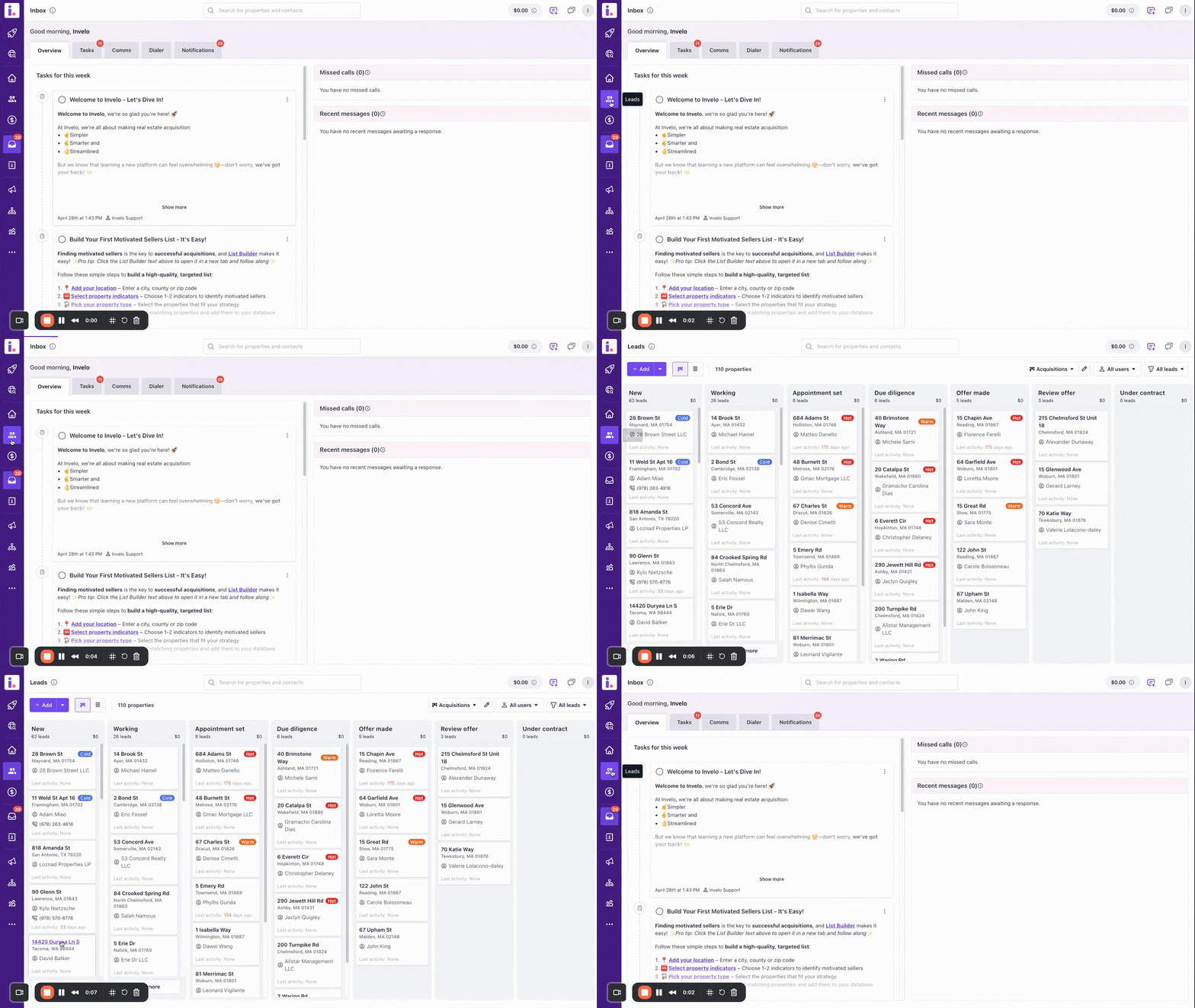
Go to your Leads or Deals page.
-
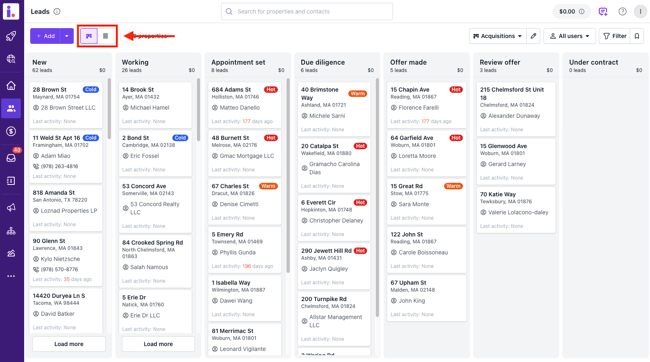
Look for the view toggle located at the top-left corner of the page.
-
Select either List View or Card View depending on your preferred workflow.
This toggle allows you to quickly move between visual tracking and detailed data review whenever needed.
If you have any questions about using these views or want help optimizing your workflow, feel free to reach out! You can reach out to the support team by sending a message through the in-app chat or email at support@inveloapp.com.