![Invelo square logo-1.png]](https://helpdesk.inveloapp.com/hs-fs/hubfs/Invelo%20square%20logo-1.png?height=40&name=Invelo%20square%20logo-1.png)
Pipelines help you organize your leads and deals based on your preferred process or workflow. Whether you're segmenting by lead source, market, or strategy, creating additional pipelines gives you more flexibility and structure. This guide walks you through how to create new pipelines in Invelo and outlines which plans support this feature.
How to Create a New Pipeline
-
Go to Your Leads or Deals Page
Start by navigating to either the Leads or Deals tab from your left-hand menu.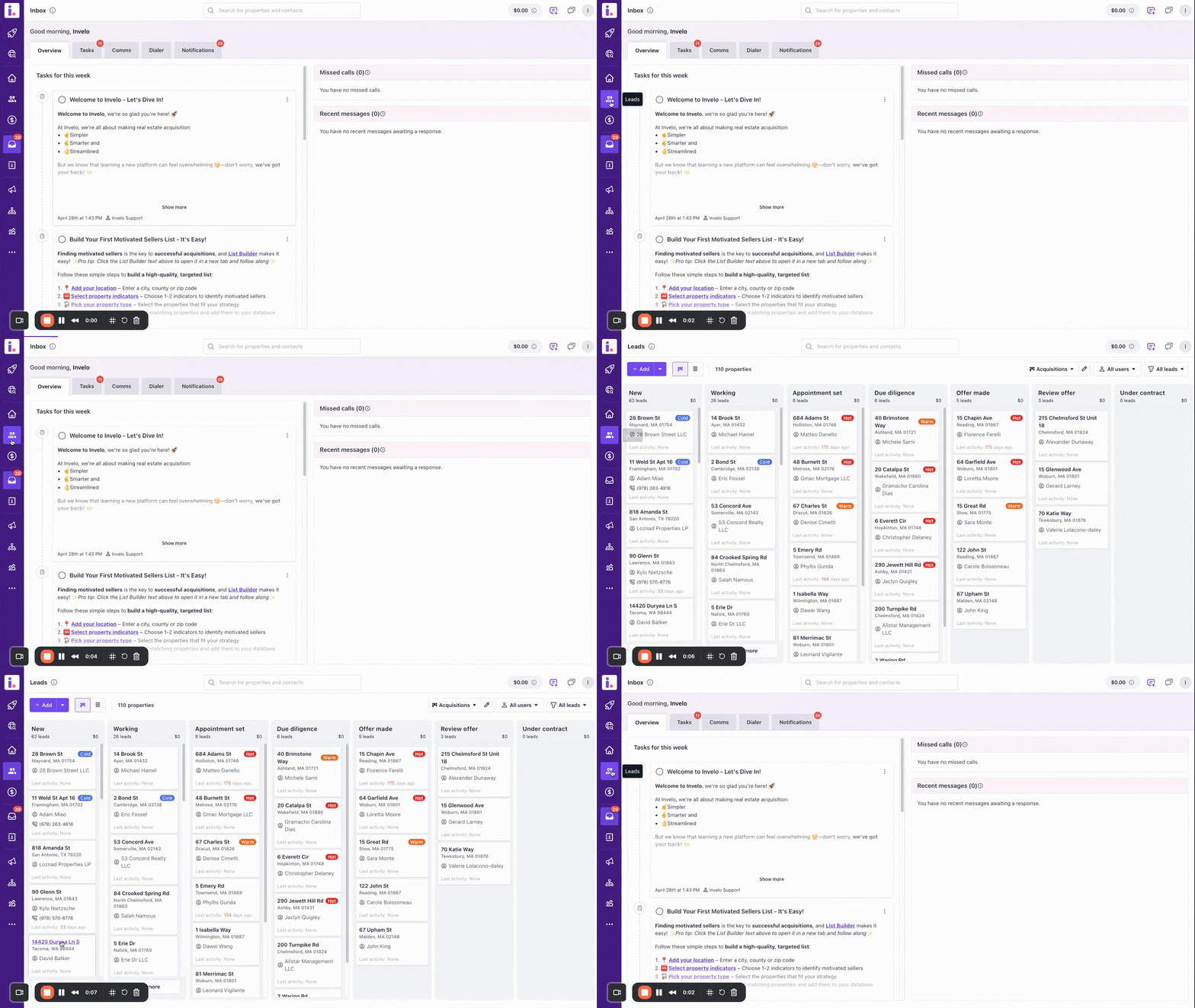
-
Select the Pipelines Dropdown
At the top of the page, locate the Pipelines dropdown menu. Click it to view all existing pipelines.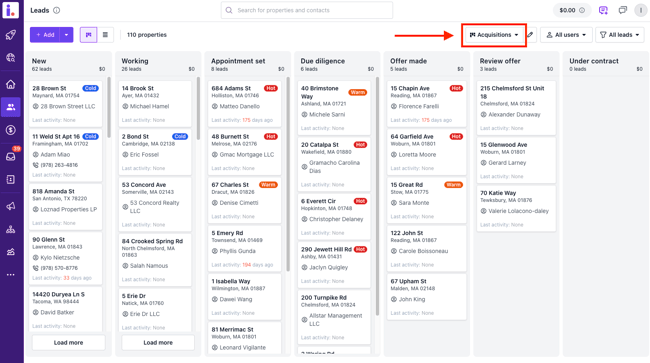
-
Create a New Pipeline
Once the dropdown opens, select + New Pipeline at the bottom of the list.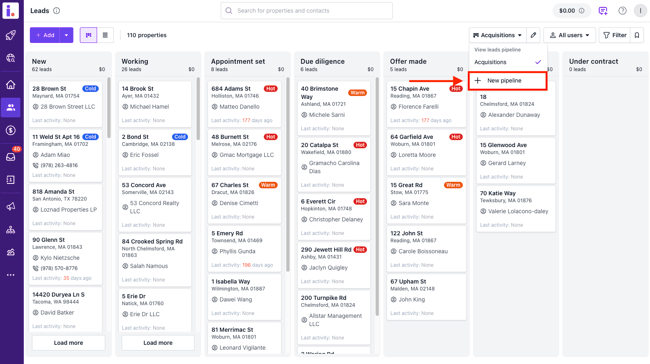
-
Name Your Pipeline
Enter a name for your new pipeline. Make it descriptive so it’s easy to identify later (e.g., “Private Lending / Capital Raising Pipeline,” “Phoenix Market,” “Wholesale Deals,” etc.).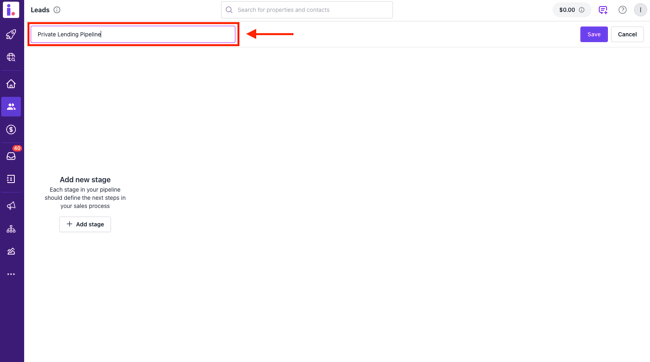
- Create Pipeline Stages
Add new pipeline stages. Stages define the next steps in your sales process. (i.e. New lender contact → Initial contact initiated → Investment opportunity sent → Commitment secured → Funds received → Project funded → Results delivered)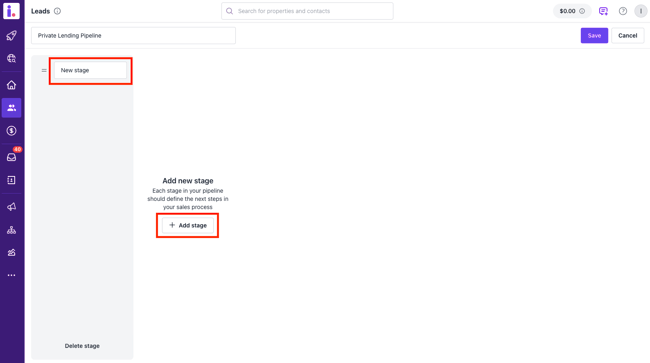
-
Save Your Pipeline
Click Save, and your new pipeline will now appear in your pipelines list.
Important Notes
- Pipelines are only available on the Growth and Professional plans.
If you're on the Deal Finder plan, you will need to upgrade to either Growth or Professional to have access to the Pipelines feature.
If you have questions about pipelines or want help choosing the best plan for your needs, feel free to reach out—we’re here to help!