![Invelo square logo-1.png]](https://helpdesk.inveloapp.com/hs-fs/hubfs/Invelo%20square%20logo-1.png?height=40&name=Invelo%20square%20logo-1.png)
Sender profiles in Invelo help you manage how your marketing messages appear to your audience. Whether you're reaching out via email, SMS, or direct mail, a well-set sender profile ensures your communications look professional, consistent, and trustworthy. In this guide, you’ll learn how to create, customize, and manage sender profiles to better connect with your audience and enhance the impact of your campaigns.
Creating multiple marketing profiles is useful when you want to:
-
Use different contact information for different marketing activities
-
Create different profiles for specific team members
-
Send marketing to various geographic areas using local contact info
You can create a Sender profile in three different locations:
- Settings
- Data Attributes
- In the marketing campaign
Create a sender profile
In Settings
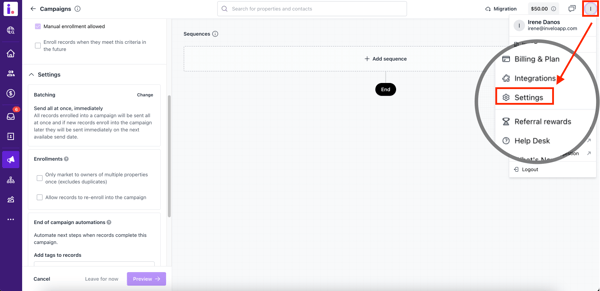
- Click your profile icon in the top right corner and select Settings.
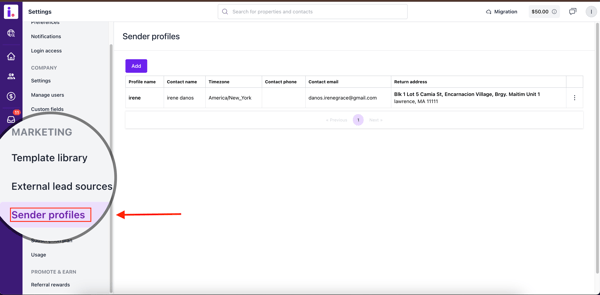
- In the Settings page, under Marketing, find and select Sender Profiles.
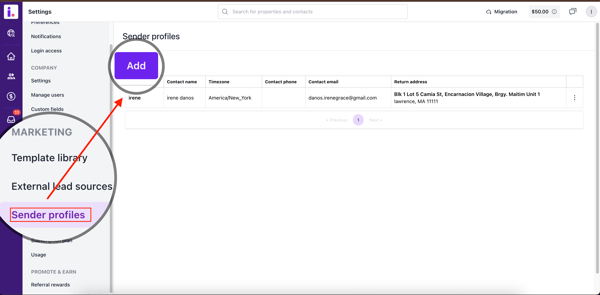
- On the Sender Profiles page, click Add.
- Enter the required details for your marketing campaigns:
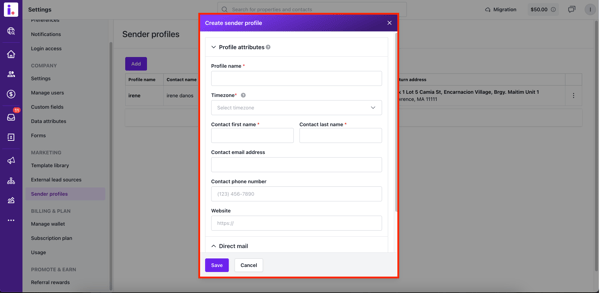
- Name of sender profile (internal use only)
- First and last name
- Phone number
- Email address
- Select a timezone. Choose a timezone based on your target audience, as Invelo schedules campaigns according to this setting.
- Add an address. This address is a profile attribute and is used as your return mail address for direct mail marketing. This has to be a valid USPS address.
- Select a Sender email and Sender phone. This requires an SMTP email and smrtPhone integration into your Invelo account.
- Enable SMS, Email, and Ringless Voicemail for your marketing campaigns by checking the boxes next to each channel.
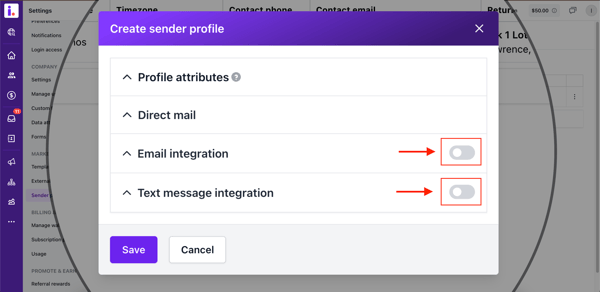
- Click Save to finalize your Sender profile.
In More Section
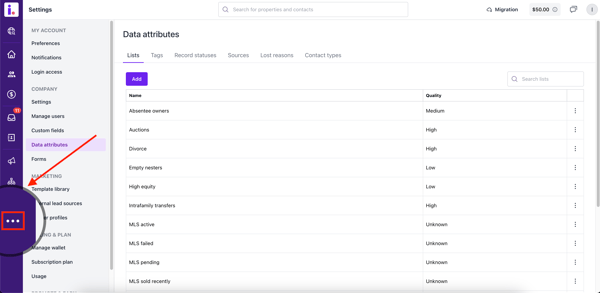
- Click on More in the left-hand menu, and select Data attributes from the list that appears.
- On the Sender Profiles page, click Add.
- Enter the required details for your marketing campaigns:
- Name of sender profile (internal use only)
- First and last name
- Phone number
- Email address
- Select a timezone. Choose a timezone based on your target audience, as Invelo schedules campaigns according to this setting.
- Add an address. This address is a profile attribute and used as your return mail address for direct mail marketing. This has to be a valid USPS address.
- Select a Sender email and Sender phone. This requires an SMTP email and smrtPhone integration into your Invelo account.
- Enable SMS, Email, and Ringless Voicemail for your marketing campaigns by checking the boxes next to each channel.
- Click Save to finalize your Sender profile.
In the marketing campaign
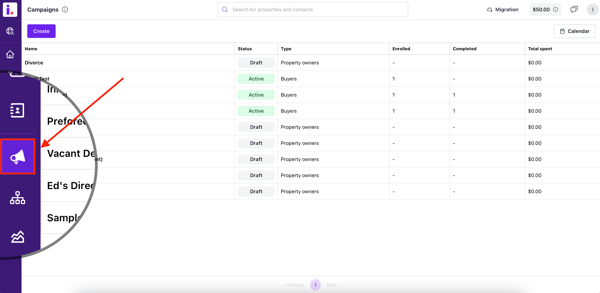
- Click on Campaigns from the left-hand menu of Invelo.
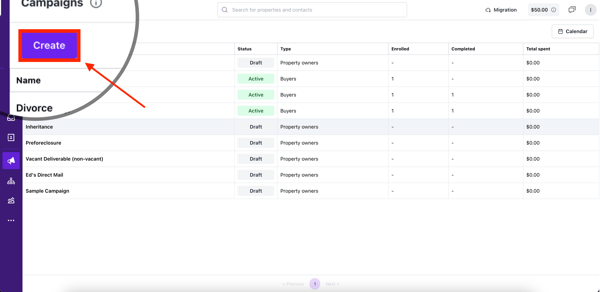
- Once you're in the Campaigns page, click Create campaign.
- Choose whether you would like to market to Property Owners or Buyers.
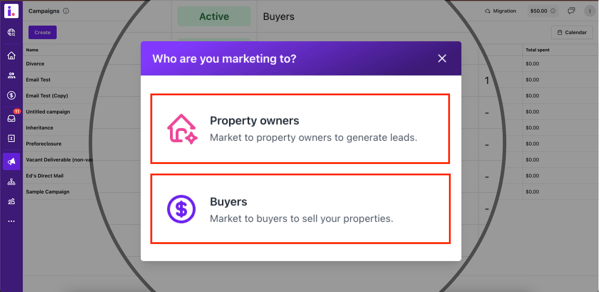
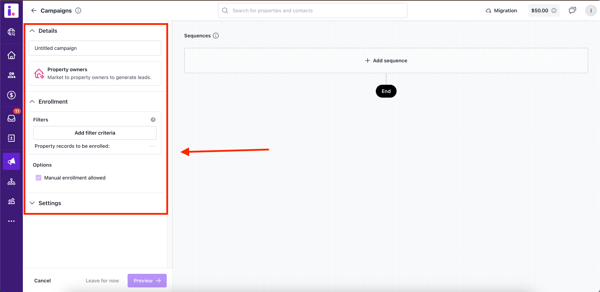
- Enter your campaign details, filter conditions, and settings at the left part of the screen.
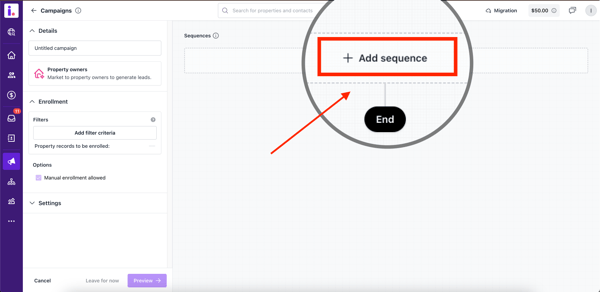
- Click on Add sequence.
- Select an outreach action. The outreach actions Invelo supports are the following:
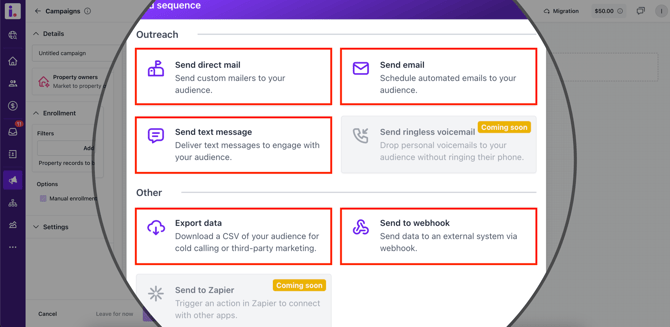
- Send direct mail
- Send email
- Send text message
- Send ringless voicemail (coming soon)
- Send to Zapier (coming soon)
- Create a new Sender profile by adding the required details for your marketing campaigns. If you have chosen to send direct mail, you would need to choose a design and delivery type first.
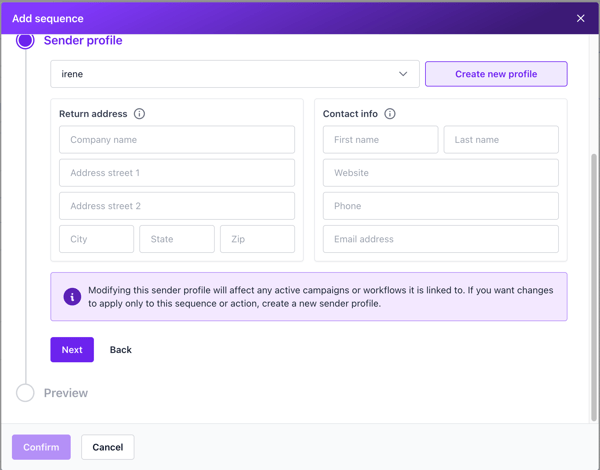
- Name of sender profile (internal use only)
- First and last name
- Phone number
- Email address
- Select a timezone. Choose a timezone based on your target audience, as Invelo schedules campaigns according to this setting.
- Add an address. This address is a profile attribute and used as your return mail address for direct mail marketing. This has to be a valid USPS address.
- Select a Sender email and Sender phone. This requires an SMTP email and smrtPhone integration into your Invelo account.
- Enable SMS, Email, and Ringless Voicemail for your marketing campaigns by checking the boxes next to each channel.
- Click Next to finalize your Sender profile.
Edit your Sender Profile
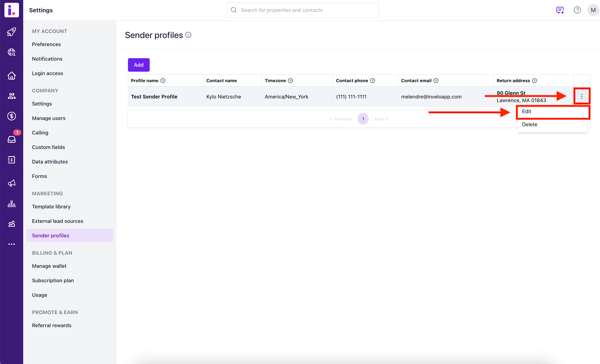
- Go to your Sender Profile settings.
- Locate the Sender Profile you'd like to edit and click the three button on the far right side of the profile. Select Edit.
- Once the Sender Profile modal appears, you can edit any of the information you'd like to change or update
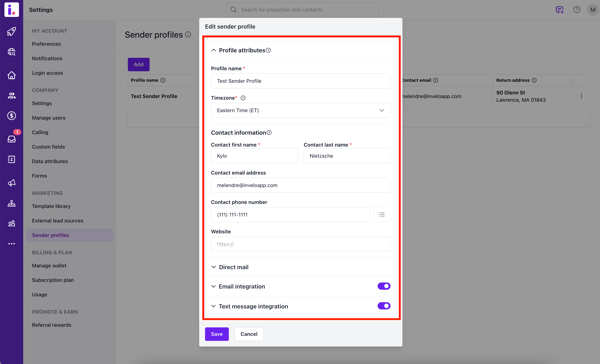
- Click Save.
Need support?
If you need any additional support on Sender Profiles, feel free to reach out to our support team by sending them a message through the chat or email at support@inveloapp.com.