![Invelo square logo-1.png]](https://helpdesk.inveloapp.com/hs-fs/hubfs/Invelo%20square%20logo-1.png?height=40&name=Invelo%20square%20logo-1.png)
In Invelo, you can easily export your marketing data as part of your campaign workflow. By adding an Export Data sequence, the platform will automatically generate a CSV file of your selected records and send it straight to your email. This is especially useful for reporting, sharing data externally, or keeping offline backups of your campaign activity.
How to add an export data sequence
Follow these steps to include an export action in your campaign:
- Create or open a campaign
- Navigate to Marketing from the main menu
- Click Create Campaign, or select an existing campaign you’d like to edit
- Click Add a Sequence
- Select the Export Data action
- After clicking Add a Sequence, browse the options
- Under the Other category, select Export Data
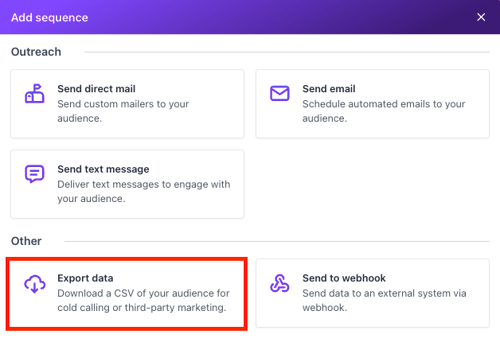
- Name your sequence
- Enter a friendly name for your sequence
- This helps you easily identify it within your campaign overview and analytics
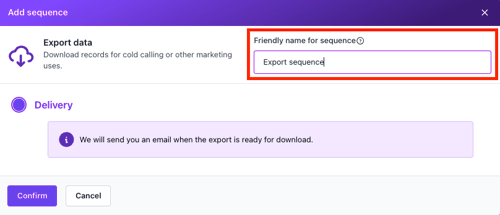
- Confirm the sequence
- Click Confirm to add the export sequence to your campaign
What happens next?
Once this sequence runs as part of your campaign:
- A CSV file containing your marketing data will be generated
- The file will be automatically sent to your registered email
This allows you to seamlessly collect and review your data without needing to manually export it from the platform.
Need support?
If you need help setting up your campaign or customizing your sequences, feel free to reach out to support via the in-app chat or send an email at support@inveloapp.com. We’re here to help!