![Invelo square logo-1.png]](https://helpdesk.inveloapp.com/hs-fs/hubfs/Invelo%20square%20logo-1.png?height=40&name=Invelo%20square%20logo-1.png)
In Invelo, you can integrate your marketing campaigns with other tools and platforms by using a Send to Webhook sequence. This allows you to automatically send your campaign data to a specified URL in real time, making it easier to sync data with CRMs, automation tools, or custom workflows.
How to add a send to webhook sequence
Follow these steps to include a webhook action in your campaign:
- Create or open a campaign
- Navigate to Marketing from the main menu
- Click Create Campaign, or select an existing campaign you’d like to edit
- Click Add a Sequence
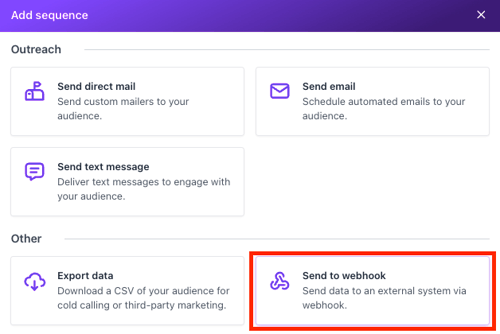
- Select the Send to Webhook action
- After clicking Add a Sequence, browse the available options
- Under the Other category, select Send to Webhook
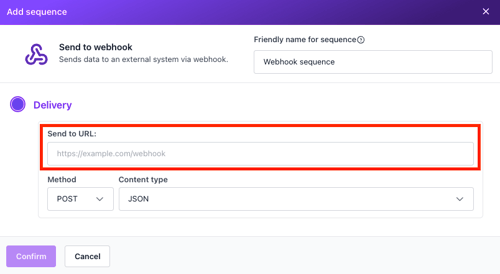
- Enter the webhook URL
- Input the URL where you want the data to be sent
- Make sure the endpoint is set up to receive incoming requests
- Choose the request method
- Select either POST or PUT, depending on your webhook configuration
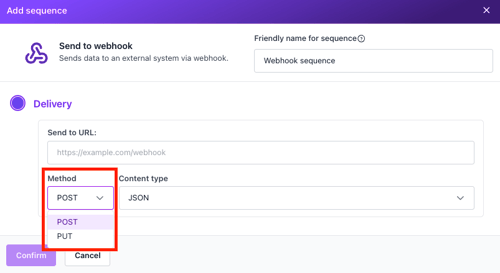
- Select either POST or PUT, depending on your webhook configuration
- Select the content type
- Choose between JSON or FORM, based on how your receiving system expects the data
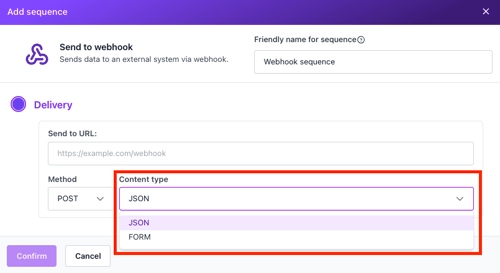
- Choose between JSON or FORM, based on how your receiving system expects the data
- Confirm the sequence
- Click Confirm to add the webhook sequence to your campaign
What happens next?
Once this sequence runs as part of your campaign:
- Invelo will send your selected data to the specified webhook URL
- The request will follow your chosen method (POST or PUT) and content type (JSON or FORM)
- Your external system can then process or store the data automatically
Need support?
If you need help setting up your webhook or ensuring your endpoint is configured correctly, feel free to reach out to support via the in-app chat or send an email at support@inveloapp.com. We’re happy to assist!