![Invelo square logo-1.png]](https://helpdesk.inveloapp.com/hs-fs/hubfs/Invelo%20square%20logo-1.png?height=40&name=Invelo%20square%20logo-1.png)
Pipelines help you track your leads and deals through each stage of your process. If your workflow changes, you can easily edit an existing pipeline in Invelo to update its name or adjust the stages within it.
How to Edit a Pipeline
Follow the steps below to make changes to an existing pipeline:
-
Navigate to Leads or Deals
From the left-hand menu, go to Leads or Deals, depending on where the pipeline is used.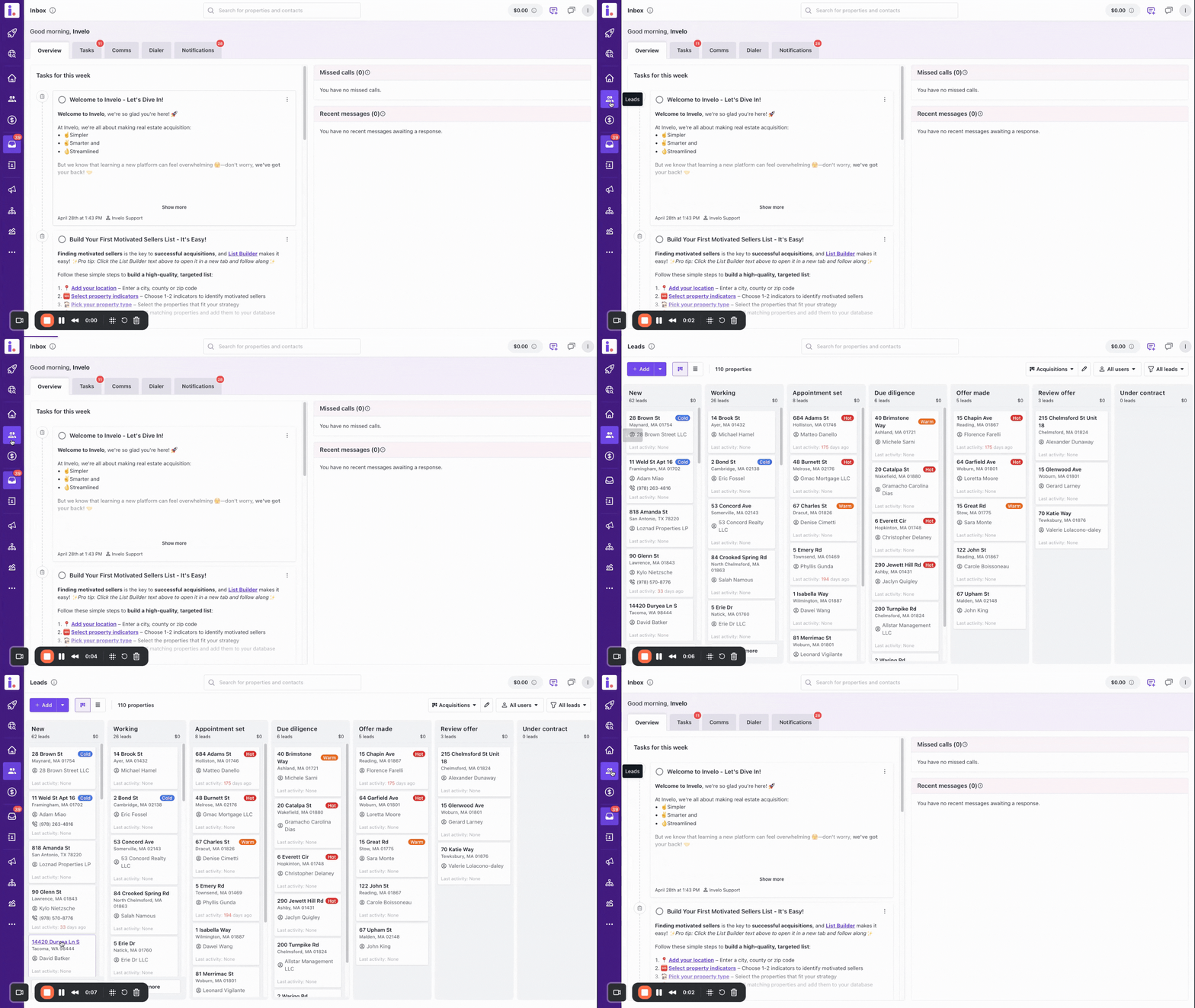
-
Open the pipelines dropdown
At the top of the page, click the Pipelines dropdown to view all available pipelines.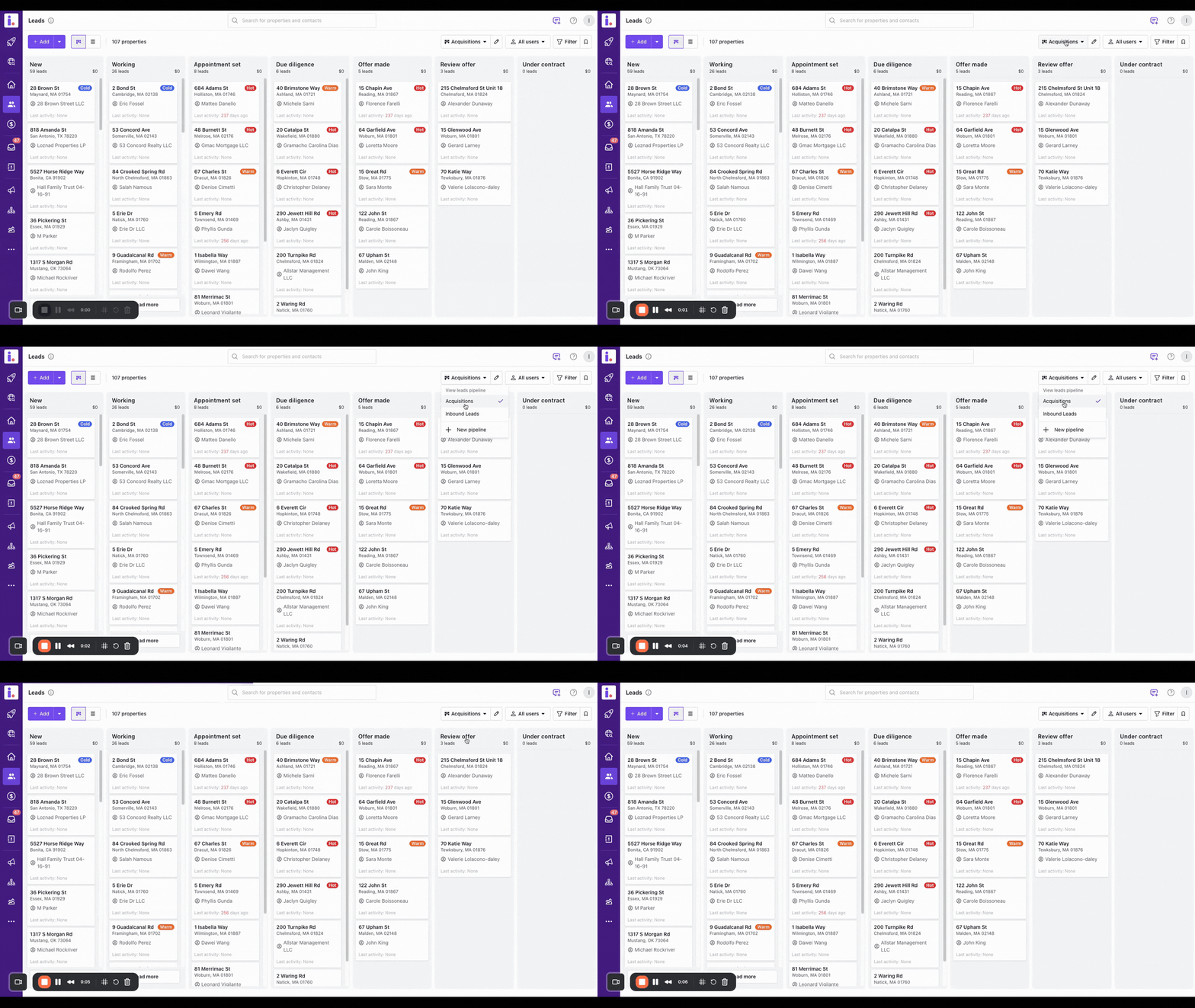
-
Select the pipeline you want to edit
Choose the pipeline you’d like to modify from the list. -
Click the Edit pipeline (✎) icon
Next to the pipeline name, click the Edit pipeline (✎) icon to open the pipeline editor.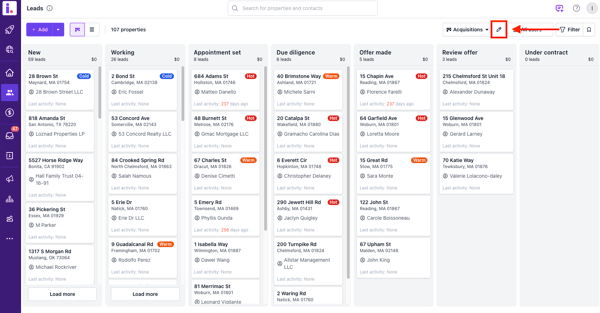
-
Make your changes
From here, you can:-
Rename the pipeline
-
Add new stages
-
Edit existing stage names
-
Reorder stages by dragging and dropping
-
Remove stages that are no longer needed
-
-
Save Your Changes
Once you’re done, click Save to apply your updates.
Important Notes
-
Changes to a pipeline will apply to all records currently using that pipeline.
-
Some default pipelines may have limited editing options.
-
Custom pipelines are available on Growth and Professional plans.
If you need help restructuring your pipeline or have questions about best practices, feel free to reach out to our support team.