![Invelo square logo-1.png]](https://helpdesk.inveloapp.com/hs-fs/hubfs/Invelo%20square%20logo-1.png?height=40&name=Invelo%20square%20logo-1.png)
The Buyer List Builder gives users the ability to search for buyers in a specific area, not just properties. This makes it easier to identify active investors, cash buyers, landlords, flippers, and other buyer types based on recent purchasing activity, portfolio size, and owned property characteristics. Users can build targeted buyer lists, save custom filters, and automate daily list growth directly inside the platform.
Overview
The Buyers tab in List Builder is designed to help users locate and organize buyers by geography and behavior. Searches can be performed by:
- Drawing directly on the map
- Entering cities
- Entering counties
- Entering ZIP codes
Because the focus is on finding people rather than parcels, specific property addresses and APN lookups are not supported in the Buyers tab.
Users can switch between Buyers and Properties tabs while keeping each tab’s filters stored separately. Saved filters remain intact when moving between tabs.
Buyer information displayed
Each buyer record may include:
- Buyer name
- Buyer type
- Mailing address
- Markets where they are active
Active markets are stored as city/state combinations.
Buyer filters
Users can filter buyer lists using detailed criteria, including:
1. Buyer activity
- Active buyers based on last purchase date
- Default active window: last 24 months
- Custom shorter windows may also be used
A buyer is not considered active if they have not purchased a property within the last two years.
2. Buyer indicators
Filter by common buyer profiles such as:
- Cash Buyer
- Rental Property Buyer
- Flipper
3. Portfolio Statistics
Set minimum or maximum thresholds for:
- Purchase price
- Number of properties owned
- Portfolio value
4. Owned property details
Filter buyers based on the types of properties they own, including:
- Living area
- Property type
- Bedrooms
- Bathrooms
- And more
How Buyer filtering works
There are two ways filtering is applied:
Property-based filters
When filtering by owned properties, a buyer appears in results if they have purchased at least one property matching the selected criteria.
Example: If filtering for 3-bed homes, the buyer will appear if any one of their purchases meets that requirement.
Buyer-based filters
When filtering on buyer criteria such as minimum purchase price or portfolio size, the filter applies directly to the buyer’s aggregated data.
How to pull a buyers list from List Builder
To pull for a buyers list in Invelo's List Builder, you can follow these steps:
1. Go to Invelo's List Builder.
2. Select Buyers.
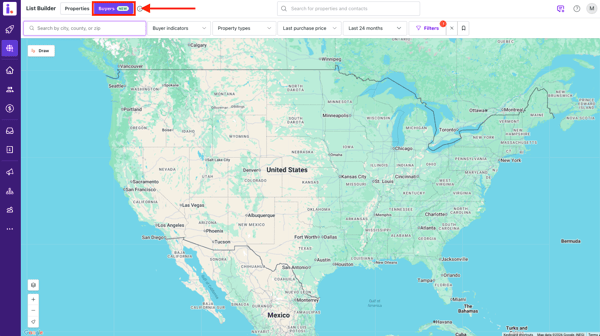
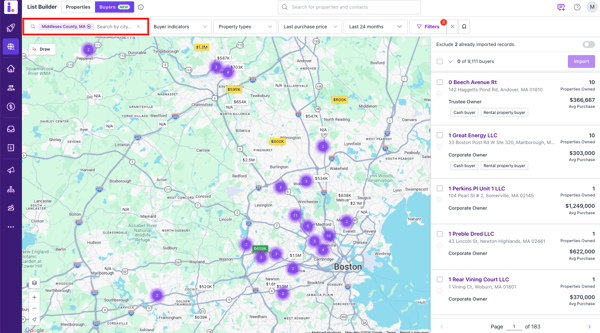
3. Add your target location. It could be a city, county, or ZIP code.
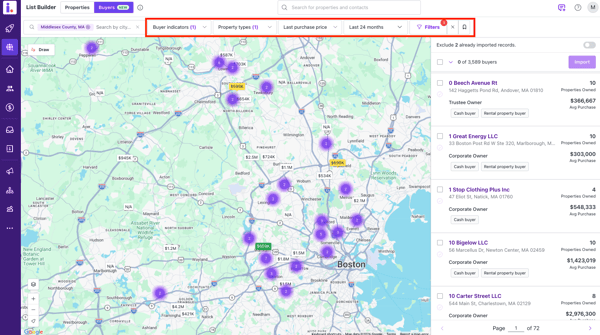
4. Choose your filters from the quick filter menu (buyer indicators, property types, last purchase price, last purchase date). Optional: you can add advanced filters by clicking the Filter button.
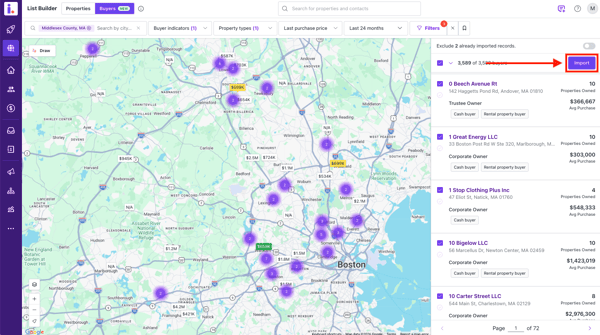
5. Once the List Builder generates the results, you can select the buyers you'd like to add to your database.
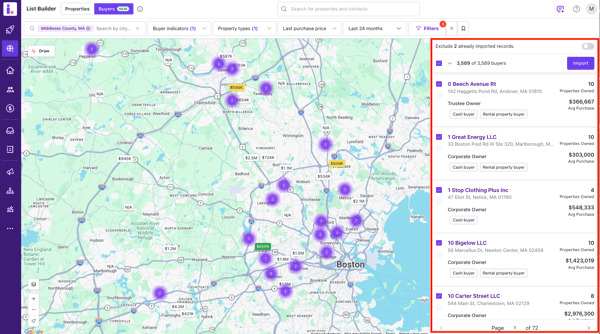
6. Select Import.
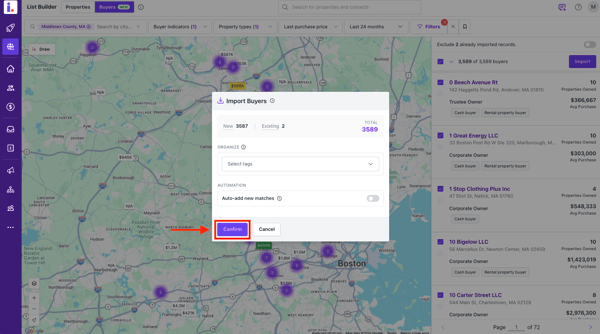
7. Click Confirm. Optional: you can add a tag to your import for deeper organization purposes. You can also enable Auto-add to allow the platform to automatically import buyers that match your search criteria daily.
Save filters and Auto-Add buyers
Users can save buyer searches as reusable filters and enable Auto-Add/
When enabled, the system automatically adds new buyers who match the saved criteria each day.
Example uses:
- New cash buyers in Phoenix
- New flippers in Dallas County
- New landlords in selected ZIP codes
CRM integration
Imported buyers are saved directly into the user’s Contacts CRM database.
Inside the CRM, buyers remain searchable and filterable using fields such as:
- Is Buyer
- Indicators
- Portfolio statistics
- Property information
This allows users to continue managing and marketing to buyers after import.
Best use cases
The Buyer List Builder is ideal for:
- Finding active investors in a target market
- Building landlord outreach lists
- Identifying recent cash buyers
- Tracking flippers and repeat purchasers
- Growing buyer lists automatically over time
- Organizing investor contacts in CRM
Need support?
If you have any questions about how to pull a buyers list in Invelo, feel free to send our support team a message through the in-app chat or email at support@inveloapp.com.