![Invelo square logo-1.png]](https://helpdesk.inveloapp.com/hs-fs/hubfs/Invelo%20square%20logo-1.png?height=40&name=Invelo%20square%20logo-1.png)
Invelo now allows users to set specific goals for campaigns, giving you the ability to automatically unenroll contacts once certain criteria are met. This ensures that your campaigns stay focused, reduces manual work, and accurately tracks when your goals are achieved.
Currently, the goals feature is only available in beta mode. This feature will be rolled out for public use in the future.
What the Goals feature does
The Goals section in campaigns enables you to define conditions that, when met, will automatically unenroll a record. The unenrollment reason will be set to “goal is reached”, providing clarity on why a contact was removed from the campaign.
How to set a goal in a campaign
-
Navigate to the campaign you want to set a goal for.
-
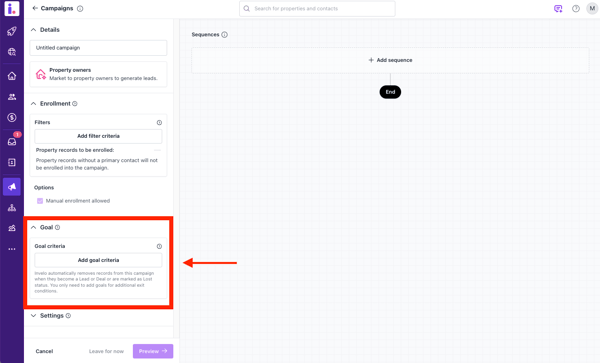
Open the Goals section. Click Add goal criteria.
-
Define the filter criteria that represent your goal. For example, a property reaching a certain status or a contact responding to outreach.
-
Save your criteria.
How goals are evaluated
Invelo continuously monitors enrolled records for goal completion:
-
Daily Checks: Each record in the campaign is evaluated once per day to see if the goal criteria have been met.
-
After Each Property Update: Anytime a property or contact is updated, a check is triggered to determine if the record meets the goal criteria.
What happens when a goal is met
-
The record is immediately unenrolled from the campaign.
-
The unenrollment reason is automatically set to “goal is reached”.
This automation ensures your campaigns stay efficient and that you can quickly identify which records have achieved your desired outcomes.