![Invelo square logo-1.png]](https://helpdesk.inveloapp.com/hs-fs/hubfs/Invelo%20square%20logo-1.png?height=40&name=Invelo%20square%20logo-1.png)
Assigning property records to your team members is essential for maintaining an organized and efficient workflow in Invelo. When every lead has a clear owner, your team can prevent missed opportunities, avoid duplicate follow-ups, and ensure consistent communication with prospects. Assignments also help you distribute workload evenly, track performance, and keep your pipeline running smoothly.
Adding additional team members is available on the Growth and Professional plans. If you're on the Free or Starter plan, you’ll need to upgrade to access multi-user capabilities.
How to Assign Property Records to Team Members
Assigning in Bulk from the CRM
To assign multiple property records at once:
-
Navigate to the CRM view.
-
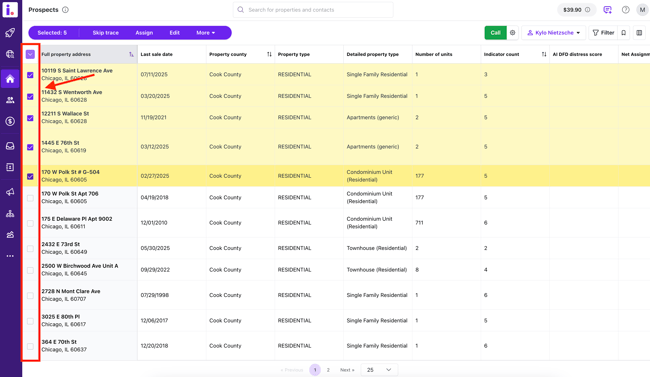
Select the property records you want to assign.
-
From the bulk actions menu, click Assign.

-
Choose the team member who should own those records.
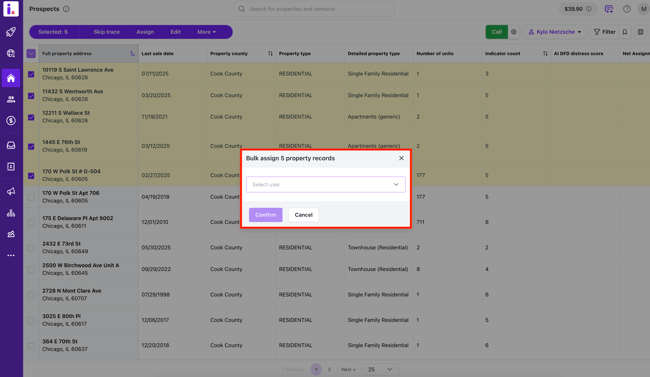
Bulk assignment is ideal when onboarding new team members, redistributing workloads, or organizing newly imported data.
Assigning from a Single Property Record
To assign ownership for an individual property:
-
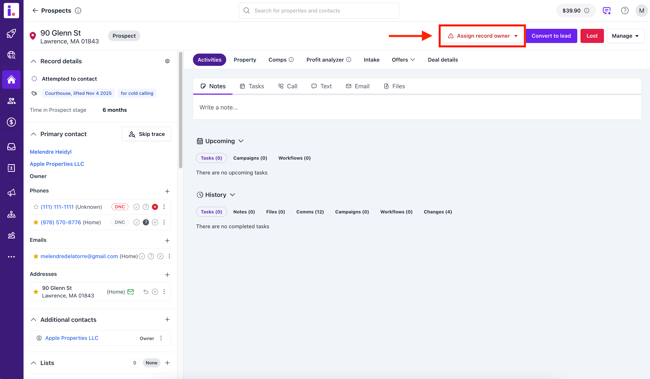
Open the single property record.
-
Click Assign record owner.
-
Select the team member to assign the record to.
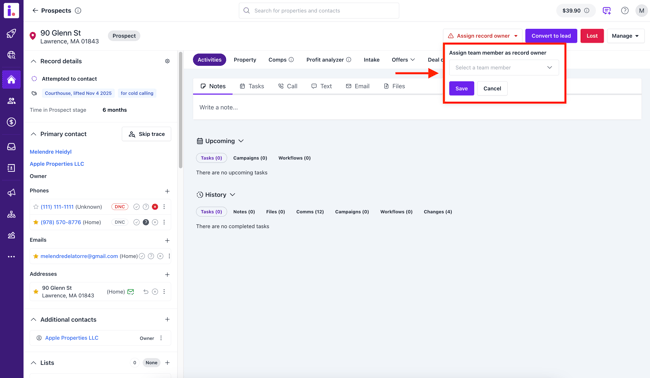
This is useful when reviewing properties one by one or making on-the-spot updates.
Viewing Assigned Records in the CRM
You can filter records by team member using the quick filters at the top of the CRM table:
-
Select All users or choose a specific team member’s name to see the records assigned to them.
-
To remove the filter and return to your full list, click the filter again and select Clear.
This allows you to quickly understand workload distribution, monitor progress, and keep oversight of your team’s activity.
If you need help managing your team setup or assigning records, our support team is here to assist!