![Invelo square logo-1.png]](https://helpdesk.inveloapp.com/hs-fs/hubfs/Invelo%20square%20logo-1.png?height=40&name=Invelo%20square%20logo-1.png)
Creating lists in Invelo helps you stay organized and manage your properties more effectively and allow you to uncover list stacking opportunities. Whether you’re importing new records, reviewing a property, or adjusting your data settings, Invelo provides multiple ways to build and manage lists tailored to your workflow.
1. Create a List During Import
When importing new records, you can add them directly to a list after mapping your fields. After completing the mapping step, look for the option to add the imported records to a list. You can either select an existing list or create a new one on the spot.
2. Create a List from Settings
You can also create a list from your account settings:
-
Go to Settings.
-
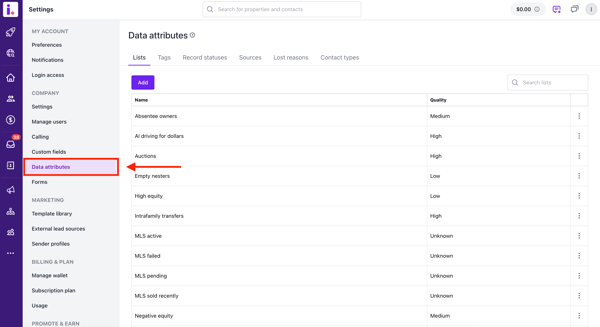
Click on Data Attributes.
-
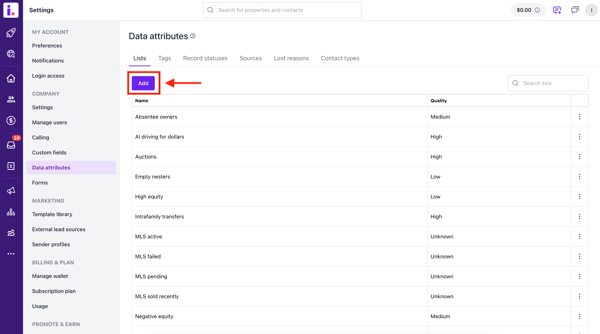
Navigate to the Lists tab and click Add. From here, you can name your list and start adding records manually or via import.
3. Create a List from a Property Record
If you’re reviewing a property record, you can create a list directly from the record view:
-
Open the property record.
-
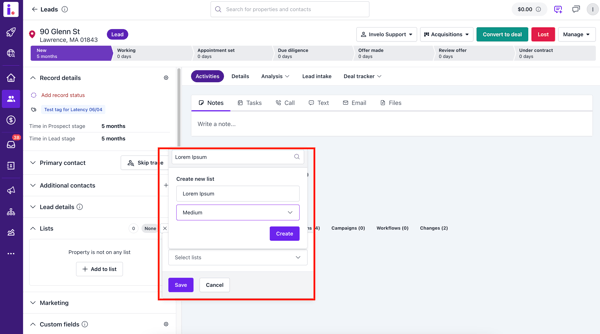
On the left-hand side, locate the Lists section.

-
Click Add to list or the + button to create a new list or add the property to an existing one. Type in the name of your new list and assign a quality before clicking Create. Afterwards, click Save.
Creating lists this way ensures your data is always organized and easy to manage, whether you’re working with individual properties, bulk imports, or ongoing campaigns.