![Invelo square logo-1.png]](https://helpdesk.inveloapp.com/hs-fs/hubfs/Invelo%20square%20logo-1.png?height=40&name=Invelo%20square%20logo-1.png)
Invelo’s List Builder offers a powerful draw tool that allows you to create custom location searches with precision. Rather than relying on predefined boundaries like cities or zip codes, the draw tool lets you outline specific areas on the map, giving you more control over your property searches. In this article, we’ll show you how to use this feature to target unique geographic areas, helping you focus on properties in exactly the locations you’re interested in.
Access Requirements
Invelo's draw tool is only available on the Growth and Professional plans. You can upgrade your plan here.
Using the Draw tool
- Click the List Builder tab on the very top of the left menu bar.
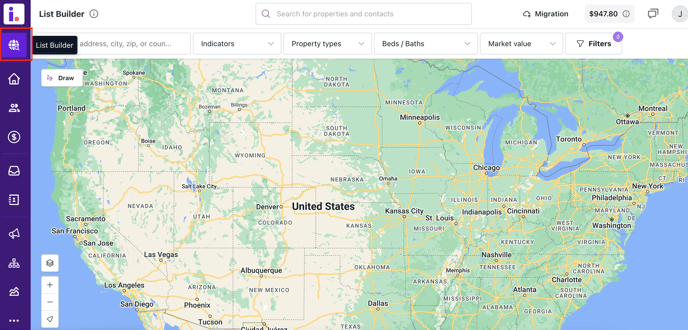
- Use the map to zoom in on the area you want to focus on.
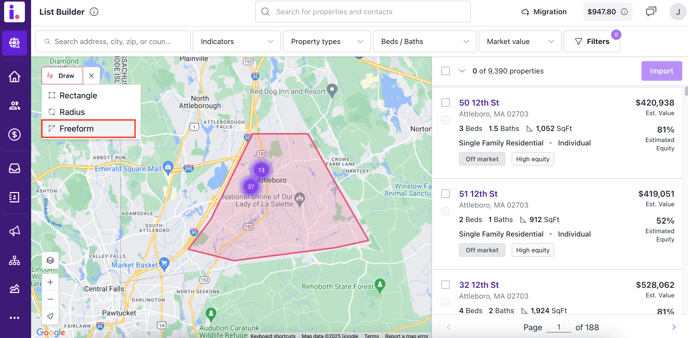
- Click on the Draw button in the top left corner of the map, and select what type of shape to draw: rectangle, radius, or freeform.
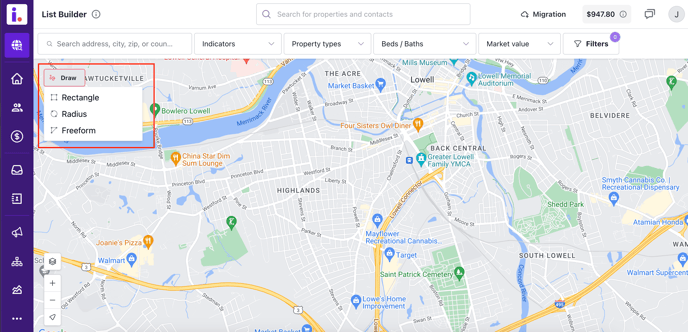
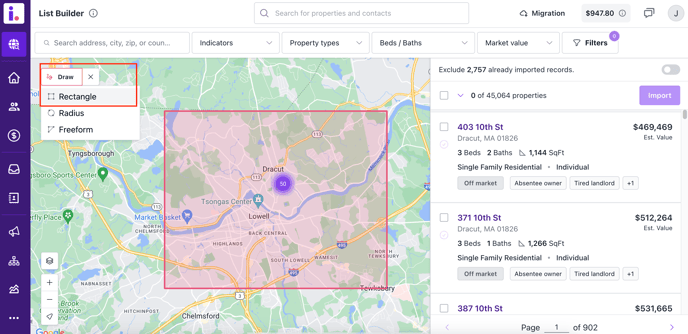
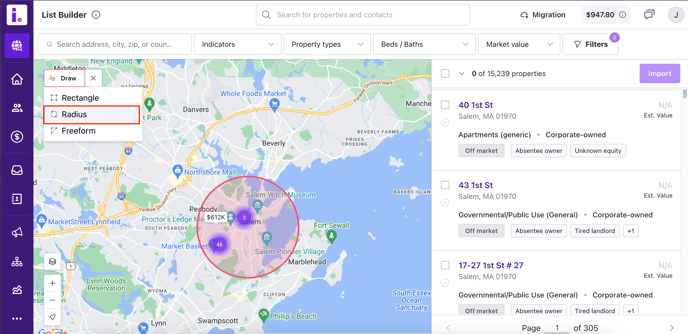
- Now click and drag the cursor on the map to outline the area you want. If you're using the Freeform Draw tool, be sure to connect the endpoints to form a closed shape.
- Invelo will automatically populate properties that match the location and filter criteria - if you have any filters applied. To import them into your database and add them to your lists, follow these instructions.
Draw tool options
- Rectangle
- Radius
- Freeform
Check this article for the best practices for drawing location searches on the map. - Rectangle
You may also automate your list building using the draw tool by saving your drawn area and selected filters. You may save by going to the Filters tab and clicking Save as new.