![Invelo square logo-1.png]](https://helpdesk.inveloapp.com/hs-fs/hubfs/Invelo%20square%20logo-1.png?height=40&name=Invelo%20square%20logo-1.png)
The auto-add feature in List Builder automatically adds new matching records to your list based on saved filter criteria — no need to recreate lists or run manual searches every time.
If you’d like to turn auto-add on or off, change which list it updates, or adjust the tags being applied, follow the steps below or watch the video tutorial:
How to Edit or Update Auto-Add Settings
-
Go to List Builder
From the left-hand menu, select List Builder.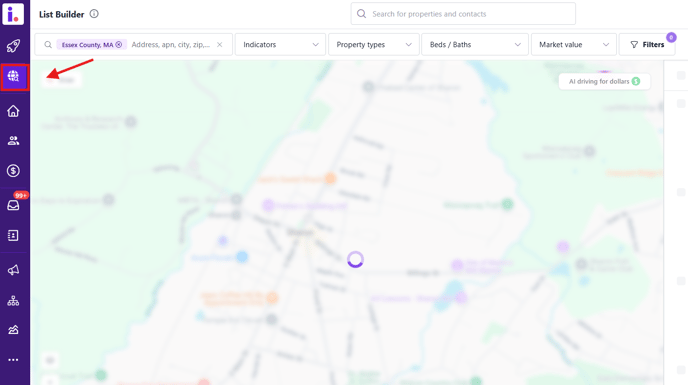
- Click on “Filters”
This panel lets you access all available advanced search filters, view your currently applied filters, load an Invelo preset, or switch to your saved filters.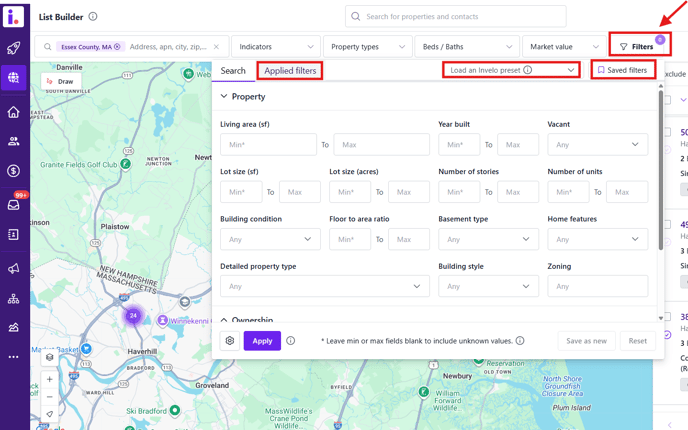
-
Click on “Saved Filters”
In the Filters panel, switch to the Saved Filters tab to view all filters with auto-add options.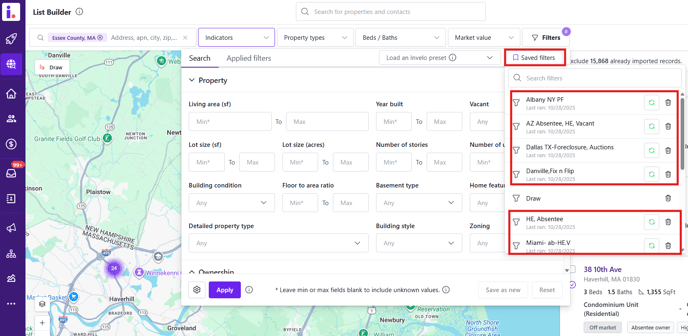
-
Click the auto-add (refresh icon) Button
Find the filter you want to update and click the auto-add button, which looks like a refresh/reload icon next to the filter name.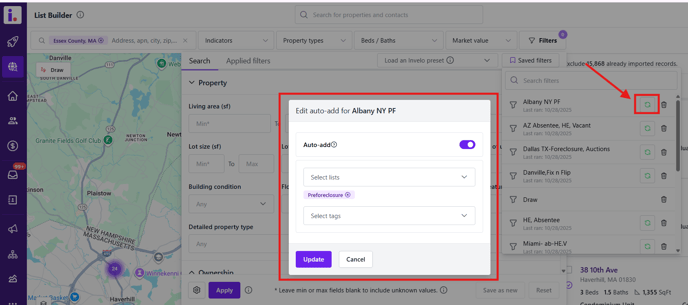
This opens the Auto-Add settings for that specific filter.
-
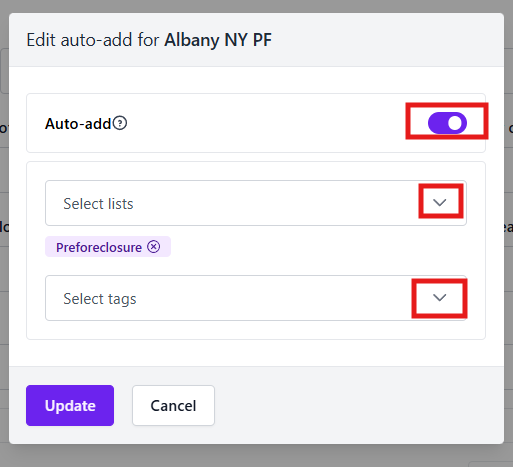
Make Your Updates
From here, you can:-
Turn Auto-add on or off
-
Select which list the records will be added to
-
Update tags to be automatically applied to new records
-
-
Save Your Changes
Once you’re done adjusting the settings, be sure to update your changes to apply them.