![Invelo square logo-1.png]](https://helpdesk.inveloapp.com/hs-fs/hubfs/Invelo%20square%20logo-1.png?height=40&name=Invelo%20square%20logo-1.png)
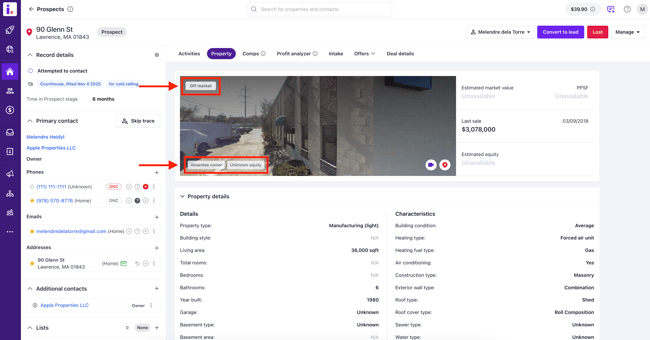
The Property tab in a single property record provides a comprehensive view of all the critical information you need about a property. From ownership details to valuation, zoning, and foreclosure data, the Property tab consolidates this information in one easy-to-navigate location. You can also view the property via Google Street View and access additional insights through AI Driving for Dollars (if run on the property). Understanding the Property tab helps you make informed decisions and maximize your efficiency when analyzing properties.
Accessing the Property Tab
To view property details:
-
Navigate to a single property record in your CRM.
-
Click on the Property tab.

Here, you’ll see all property information organized into sections, including:
-
Property Details
-
Land and Zoning
-
Valuation and Equity
-
Last Sale Information
-
MLS
-
Foreclosure Data
-
AI Driving for Dollars (if previously run on this property)
Indicators and Google Street View
Alongside the property data, you’ll notice visual indicators that provide quick insights into the property’s status. Directly above these indicators is a Google Street View image of the property. You can interact with Street View to virtually explore the property and its surroundings, helping you gain a clearer picture without physically visiting the location.
Data Sources and Accuracy
Invelo pulls property information directly from authoritative sources, including county records and USPS data. While we update the platform daily, accuracy depends on how each county reports its data. Here’s a breakdown of where key property information comes from:
-
Owner Occupied Status: Pulled from USPS address data to indicate if the owner resides at the property.
-
Vacancy Status: Derived from USPS and other verified sources to identify potentially vacant properties.
-
Foreclosure Data: Pulled from county records, including recording dates, to provide accurate foreclosure history.
-
Property Valuation & Equity: Sourced from public property records and market data.
-
Land and Zoning: Pulled from county assessor and planning department records.
-
Last Sale Information: Pulled directly from county records to show the most recent transaction details.
Important Data Notes
-
AI Driving for Dollars: This feature provides insights on the property’s investment potential based on virtual driving simulations. Data will appear only if you’ve previously run the property under AI Driving for Dollars.
-
Data Nuances: While Invelo updates daily, county reporting practices may vary, and some information may lag. Always verify critical details before making major decisions.
Property vs. Contact/Owner Information
-
The Property tab focuses on the physical attributes and financial history of the property.
-
The Contact/Owner tab provides details about the property’s owner, including name, mailing address, and communication options.
By understanding both tabs, you can get a complete picture of the property and the decision-making context surrounding it.
In case you need more support on this matter, feel free to send the support team a new message via the in-app chat or email at support@inveloapp.com!