![Invelo square logo-1.png]](https://helpdesk.inveloapp.com/hs-fs/hubfs/Invelo%20square%20logo-1.png?height=40&name=Invelo%20square%20logo-1.png)
Creating a focused marketing audience helps you reach the right sellers or buyers, not just more leads, by targeting prospects who match specific property or contact criteria. Invelo’s advanced filtering tools make it easy to narrow down your audience based on property, ownership, valuation, MLS status, and more.
What this does
With audience filters, you can segment your database to target motivated sellers or buyers for any marketing campaign. By adding multiple conditions and filter groups, you create dynamic segments that reflect exactly who you want to reach.
Create a marketing audience using filters
-
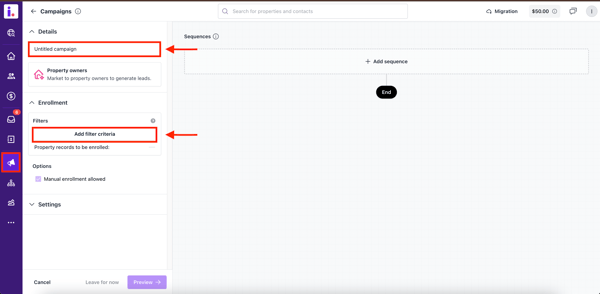
In the Campaigns page, after adding your campaign title, create your marketing audience by using Invelo's filter criteria. Click Add filter criteria.
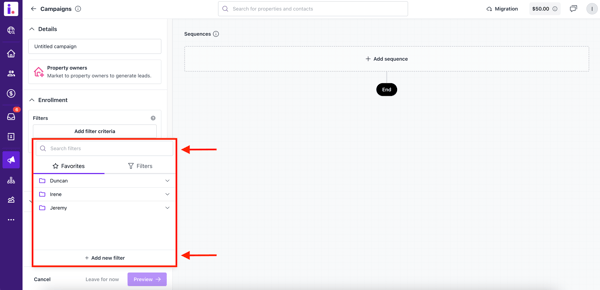
- A pop-up modal will appear, allowing you to select the filters you'd like to use. You can also type in the criteria you want to search for.
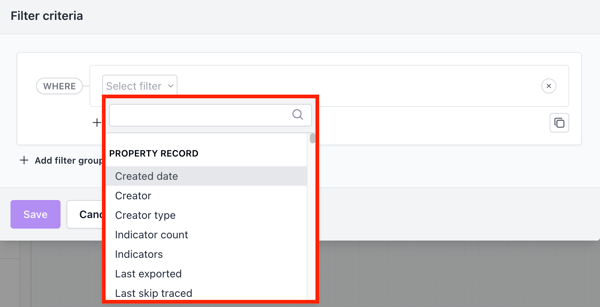
- You can choose from a variety of property record data, including property details, ownership, MLS, valuation and equity, foreclosure, primary contact, and all contacts.
Select from a wide range of available data categories, such as:
-
Property details (location, structure, size)
-
Ownership (individual vs. corporate)
-
Valuation & equity
-
MLS status
-
Contact fields (primary and other contacts)
-
- Enter the values for the selected filter. Some filters require an operator and some require a range of values. In this example, the Living Area (sf) filter requires a range of values, input from 1 - 850 square feet. Click Add condition to add another filter.
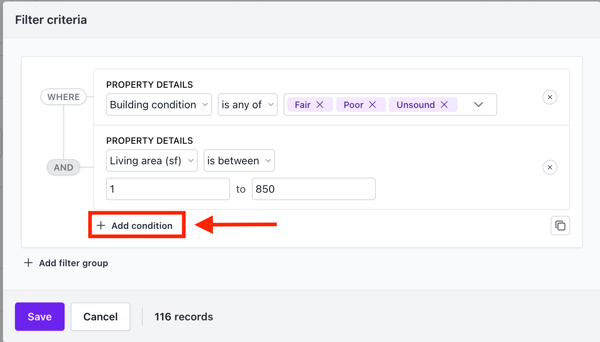
- Once you have added your first filter, continue to add filters until you have your desired criteria. In this example, the Building Condition filter is added as Fair, Poor, and Unsound, further identifying rehab opportunities with records in your database. There is also an MLS Listing Status filter applied as Failed, and Not Listed so you're only focusing on off-market properties.
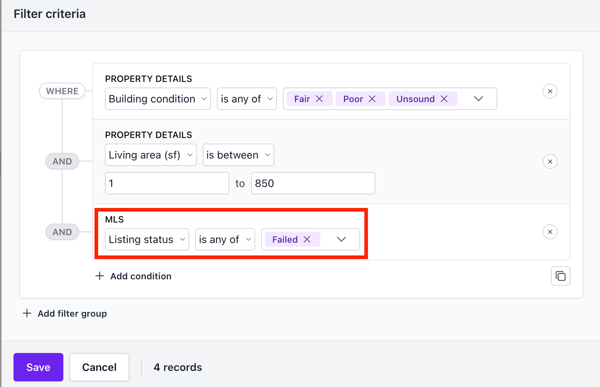
- You can add another Filter Group to either expand or narrow your record results. In this example, the List filter is used to add the DFD list. The operator between filter groups is set to OR, expanding your results by adding properties you have specifically identified as in distress while driving around in your farm area.
Note: As you add filters, you'll see the list of records that match your criteria to the right of the Cancel button.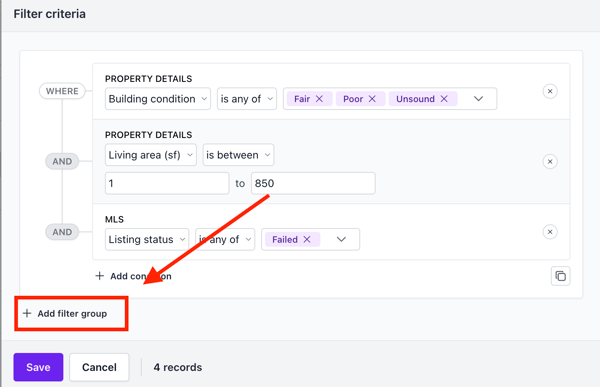
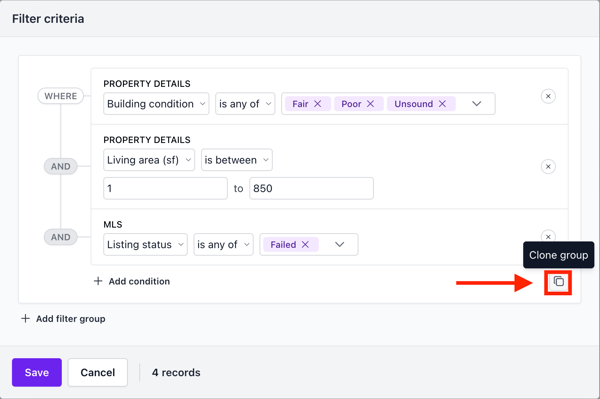
- You also have the option to clone your filters by clicking the clone icon on the right side of the modal.
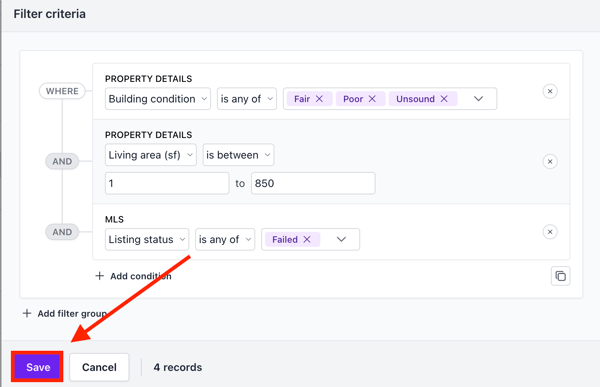
- Now that you have completed your filter criteria, click Save
Tips for better targeting
-
Use AND filters to narrow down your audience by combining multiple must-have criteria.
-
Use OR filter groups to include records that meet at least one of several different sets of conditions.
-
Naming your audience with a clear identifier (e.g., “High Equity Rehab Targets”) helps you quickly reuse it later.
Why use filters for marketing?
Filters turn raw data into intelligent, actionable segments — ensuring your marketing reaches the right prospects rather than a broad, unqualified list. Complex criteria (like ownership type, MLS status, valuation bands, and custom tags) can be layered to build high-intent marketing audiences automatically.
Need support?
In case you need any help with using the filters to create a marketing audience, feel free to send our support team a message through the in-app chat or email at support@inveloapp.com.